
How to add free shipping for your WooCommerce store
Free shipping removes the shipping cost at checkout. It boosts conversion and reduces cart abandonment.
In this guide, you will set up free shipping with core WooCommerce and create advanced, rule-based free shipping with the Flat Rate Shipping plugin. You will also see two real examples and a quick test checklist.
In The Article
What is free shipping?
Free shipping means the customer pays ₹0 for shipping at checkout.
You can offer it to everyone, or only when conditions are met.
Common conditions: minimum order amount, valid coupon, specific products or categories, user roles, locations, dates, or times.
Why is free shipping required?
- Increases conversion and average order value.
- Reduces cart abandonment.
- Keeps pricing simple and competitive.
- Let's you run time-bound offers for sales and festivals.
- It can be controlled with rules, so you do not lose margin.
Ways to configure free shipping
1) WooCommerce core — Free Shipping method
You can configure free shipping using the default woocommerce shipping flow without conditional login
2) Advanced conditional free shipping
Use this when you need rules by subtotal, category, product, weight, quantity, postcode, user role, days, time windows, or festivals.
Steps
- Go to Dashboard → Dotstore → Flat Rate Shipping
-
Click Add New button to add the title and cost
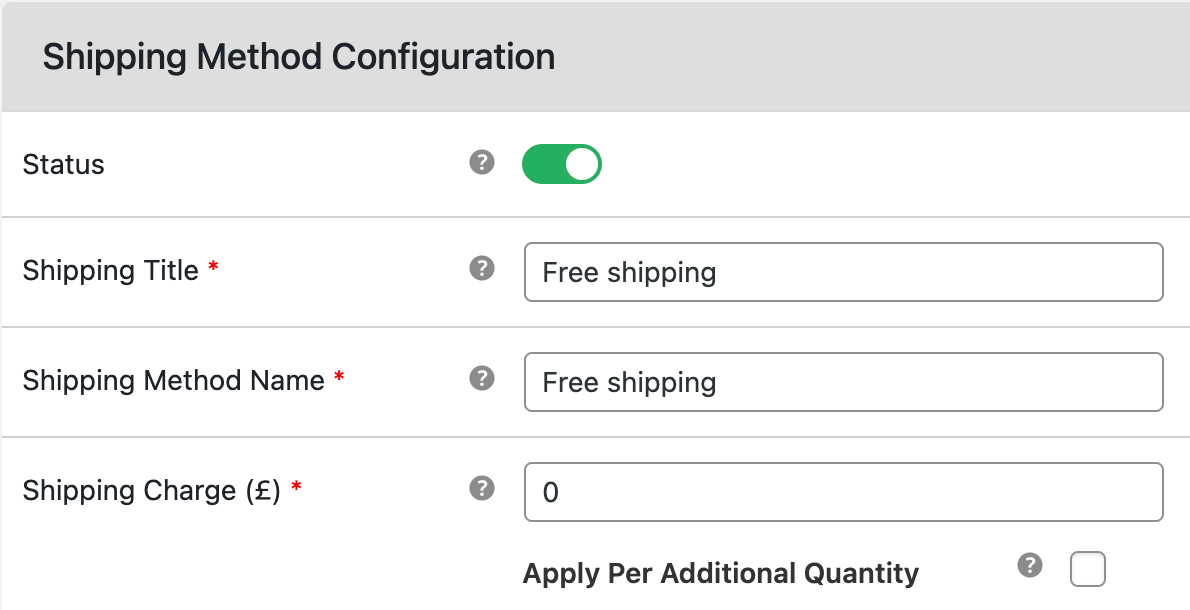
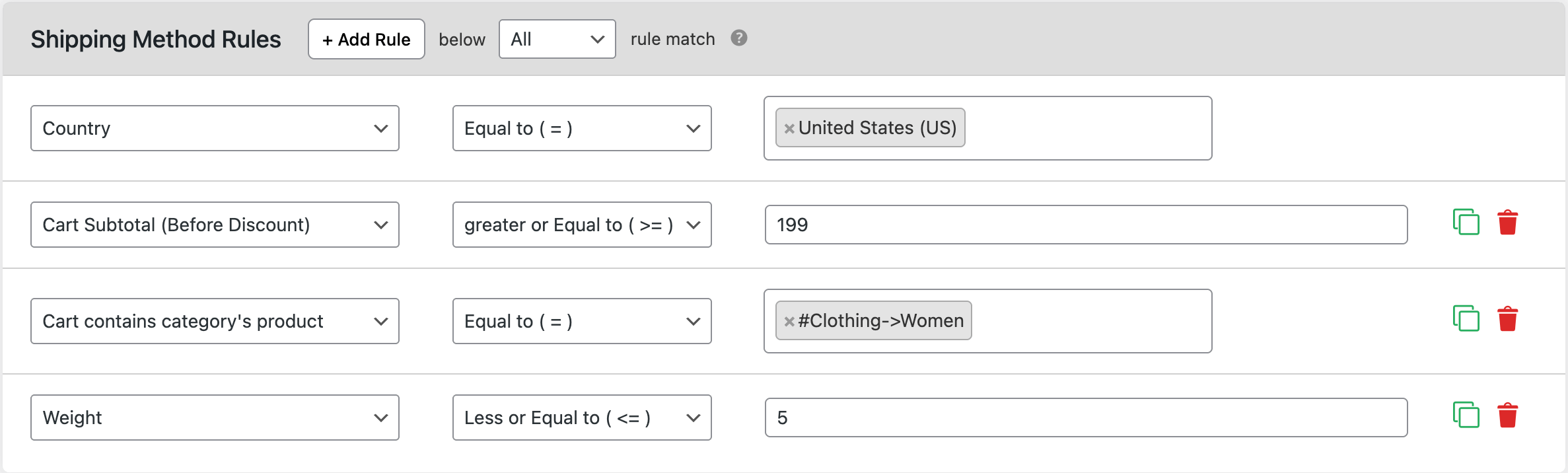
- Add Conditions as needed, for example:
- Subtotal ≥ amount
- Product or Category in cart
- Weight or Quantity ranges
- Country/State/Postcode
- Logged-in only or specific roles
- Days of the week and Time window
-
Specific coupon present
Optional display settings:
- Tooltip to explain why shipping is free
- Default selected shipping
-
Estimated delivery time text
- Save and test.

Real example use case 1
Goal: Free shipping across India for orders ≥ ₹1,499. Exclude heavy carts over 5 kg.
Steps
-
Country: India.
Method: Add Flat Rate and set Cost = 0
Conditions:
- Subtotal ≥ 1499
- Weight ≤ 5 kg (or exclude > 5 kg using a separate rule)
- Label: “Free Shipping (India)” and add a tooltip “Eligible on ₹1,499+ and up to 5 kg”.
- Save.
Admin Setting

Test Case
- Cart subtotal ₹1,300 → Free does not appear.
- Cart subtotal ₹1,600 and total weight 3 kg → Free appears.
- Cart subtotal ₹2,000 and weight 6 kg → Free does not appear.
Real example use case 2
Goal: Weekend free shipping for the “Accessories” category in Metro postcodes only.
Steps
-
Zone: India → restrict by Metro postcodes (e.g., 400xxx, 5600xx, 6000xx) or use the method’s postcode rules.
Method: Add Free Shipping and set Cost = 0.
Conditions:
- Category = Accessories
- Day of week = Saturday, Sunday
- Postcode in list = Metro codes
- Optional: Mark as the Default selected shipping on weekends.
- Save.
Admin Setting

Test
- Friday cart with Accessories in a non-Metro postcode → Free does not appear.
- Saturday cart with Accessories in the Metro postcode → Free appears.
FAQs
1) What is the difference between WooCommerce core Free Shipping and a 0-cost flat rate?
Core Free Shipping is simple and tied to minimum amounts or coupons. A 0-cost flat rate with Dotstore lets you add many conditions like category, user role, postcode, weight, and schedules. Use core for simple needs. Use Dotstore for advanced control.
2) Can I show free shipping only to logged-in customers or specific roles?
Yes. In Dotstore, add a User role or Logged-in only condition. Save and test with different accounts.
3) Can I keep shipping free but still add a small handling fee?
Yes. Add a small fee using your fees plugin or handling-fee setting. Keep the shipping method at ₹0, and show a short tooltip so customers understand the charge.
4) How do I schedule free shipping for a festival or sale?
Use Start date and End date, or Days/Time window in the shipping method. This turns free shipping on only during your campaign.
5) How do I test before going live?
Create a few carts:
- Below and above your threshold
- With and without the right products or categories
- Matching and non-matching postcodes
-
Weekday vs weekend
Check the checkout label, tooltip, taxes, and whether other methods hide or stay visible.
6) Can I enable free shipping for only one specific product in WooCommerce?
Yes. You can configure free shipping for a specific product by creating a rule that applies only when that product is present in the cart.
To do this:
- Go to the shipping rules settings in the plugin.
- Create a new rule.
- Select Product as the condition.
- Choose the product that should receive free shipping.
- Set the shipping cost to 0 (Free Shipping).
Once configured, customers will receive free shipping only when the selected product is added to the cart.
7) Why is free shipping being applied to all products instead of one product?
This usually happens when the shipping rule is configured using a global condition, such as cart total or shipping zone.
To apply free shipping to only one product, make sure the rule is configured using:
- Product condition, or
- Product category condition
instead of general cart conditions.
8) How can I offer free shipping for one product without affecting other products in the cart?
To offer free shipping for only one product:
- Create a product-specific shipping rule.
- Set the rule condition to match the selected product.
- Apply free shipping only when that product is present.
Other products in the cart will continue using their normal shipping rules.
9) Can I combine free shipping for one product with normal shipping for other items?
Yes. The plugin allows you to configure conditional shipping rules, so that:
- One product can have free shipping
- Other products can still have standard shipping rates
This ensures that the free shipping offer applies only to the targeted product without affecting the rest of the cart.