
How to create a min/max rule based on the product's regular price in WooCommerce
The plugin allows you to apply minimum and maximum quantity limits based on a product’s regular or discounted price. For instance, if you set a rule that applies when the regular price is greater than or equal to $30, the rule will activate for products with a regular price that meets or exceeds this amount.
In The Article
Benefits
- Price-tier control
- Wholesale-friendly
- Flexible selling strategies
How to Configure Regular Price-Based Rules
- Go to the "Manage Rules" page in the plugin settings and click the "Add New" button to start creating a new rule.
- In the "Configuration" section, set the rule status (Active/Inactive) and assign a descriptive name to the rule, such as "Product Regular Price Specific Rule," to help you easily identify it later.
- In the "Advanced Rules > Conditions" section, select the "Regular Price" option and set the condition, such as "Regular Price greater than or equal to X" (where "X" is the desired price threshold).
-
In the "Advanced Rules > Action" section, define the minimum and maximum quantity limits for the selected regular price condition.
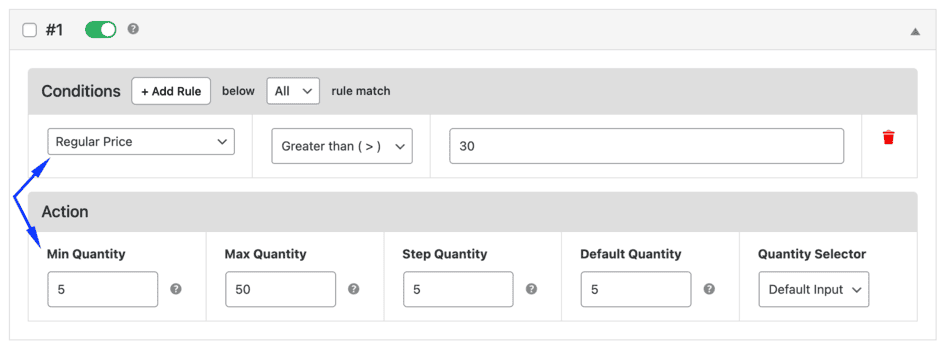
Admin: Set regular price based condition and min/max limit
-
Save your changes to apply the rule.
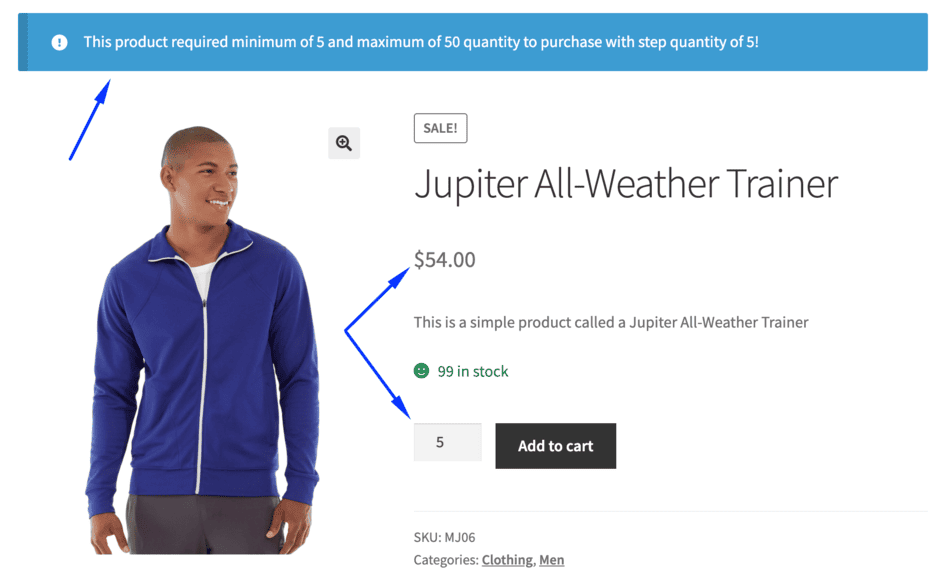
Front: Product with quantitly limit based on the product's regular price
Example Use Case
Apply bulk quantity rules only for premium products priced above a certain amount.
FAQs
1. Can I combine price-based rules with other conditions?
Yes. Price-based conditions can be combined with other rule conditions like Products, Users, etc.
2. Will the rule apply if a product price changes?
Yes. If the regular price changes and matches the defined condition, the rule will apply automatically.
2. Is this feature useful for wholesale pricing?
Yes. This feature is ideal for wholesale or tier-based pricing strategies where quantity rules depend on product price ranges.