
How to Add Discount Rules from Templates in WooCommerce
Dynamic Pricing and Discount Rules let you build custom pricing rules for your WooCommerce store, from storewide sales to product-specific discounts. The Add from Template feature gives you a library of ready-made rules to start from instead of building a discount rule from scratch.
For example, if you're planning a Black Friday sale, you can pick a storewide sale template, set the campaign timing to Black Friday, and have the rule ready in under a minute.
In The Article
Benefits
Using ready-to-use templates can help:
- Launch common sales like storewide, product, or category discounts without setting up conditions manually
- Set up seasonal campaigns, like Black Friday, with the timing already built in
- Review a discount rule as a draft before it goes live on your store
How to Add a Discount Rule from a Template
Step 1: Open the template library
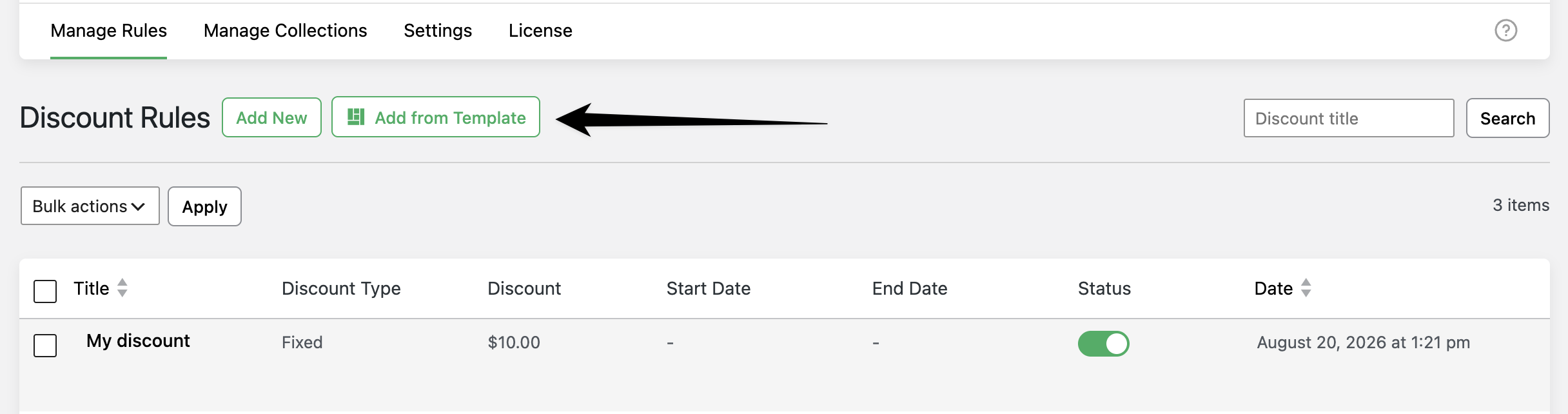
Go to Discount Rules in your WordPress admin, then click Add from Template next to the Add New button.
Step 2: Choose a template
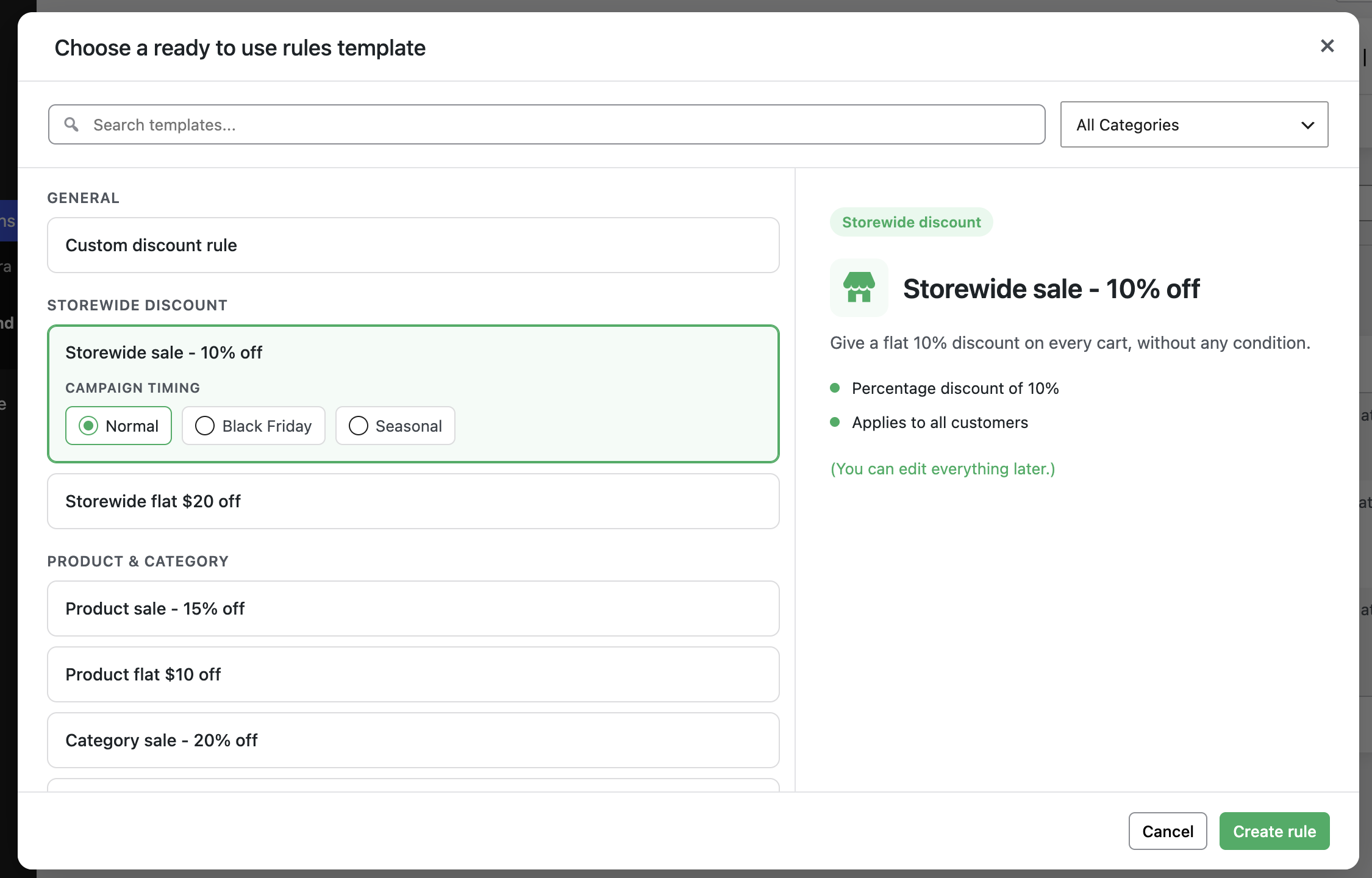
A popup opens showing template categories such as General, Storewide Discount, and Product & Category. Use the search bar or the All Categories dropdown to find one, then click a template to preview it. The panel on the right shows what the template includes, like its discount type and any conditions.
Step 3: Set the campaign timing
For templates under General, choose a Campaign Timing option: Normal, Black Friday, or Seasonal. [Confirm: what dates or defaults each option applies to the rule]. Templates in other categories, like storewide or product sales, already come with their discount type and value filled in.
Step 4: Create the rule
Click Create rule. The rule saves in draft mode, so it won't go live on your store until you review and activate it.
Back on the Discount Rules list, open the new rule to check its discount type, value, and conditions, then turn the Status toggle on to activate it.
Example Use Cases
Running a Black Friday sale: Pick a storewide or product template, set Campaign Timing to Black Friday, and the dates are handled for you.
Testing a discount before launch: Create the rule from a template, leave it in draft, and review the settings before switching Status on.
Starting from a clean structure: Use the "Custom discount rule" template under General when you want a plain starting point with the discount type already set, instead of an empty rule.
Conclusion
The Add from Template feature saves you from building common discount rules from scratch. Pick a template, adjust the campaign timing if needed, and create the rule — it's saved as a draft until you're ready to switch it on.
FAQs
1. Where do I find the template library?
Go to Discount Rules and click Add from Template, next to the Add New button.
2. Is a rule created from a template live right away?
No. Rules created from a template save in draft mode. Open the rule and turn on the Status toggle to make it active.
3. Can I edit a rule after creating it from a template?
Yes. The template just gives you a starting point — you can change the discount type, value, and conditions after the rule is created.