
How to Set Discount Rules Behavior with WooCommerce Coupons
Dynamic Pricing and Discount Rules lets you run automatic discounts alongside your store's regular WooCommerce coupons. The Choose discount rules behaviour with default WooCommerce Coupons setting controls whether the two are allowed to work together, or whether one should take over.
For example, if you don't want customers stacking a coupon on top of an automatic sale, you can turn off coupons while your discount rules are active.
In The Article
Benefits
Setting this behavior can help:
- Stop customers from stacking a coupon on top of an automatic discount
- Give discount rules priority over coupons during a promotion, or the other way around
- Keep coupons and discount rules running together when that's what you want
How to Set Discount Rules Behavior with Coupons
Step 1: Open General Settings
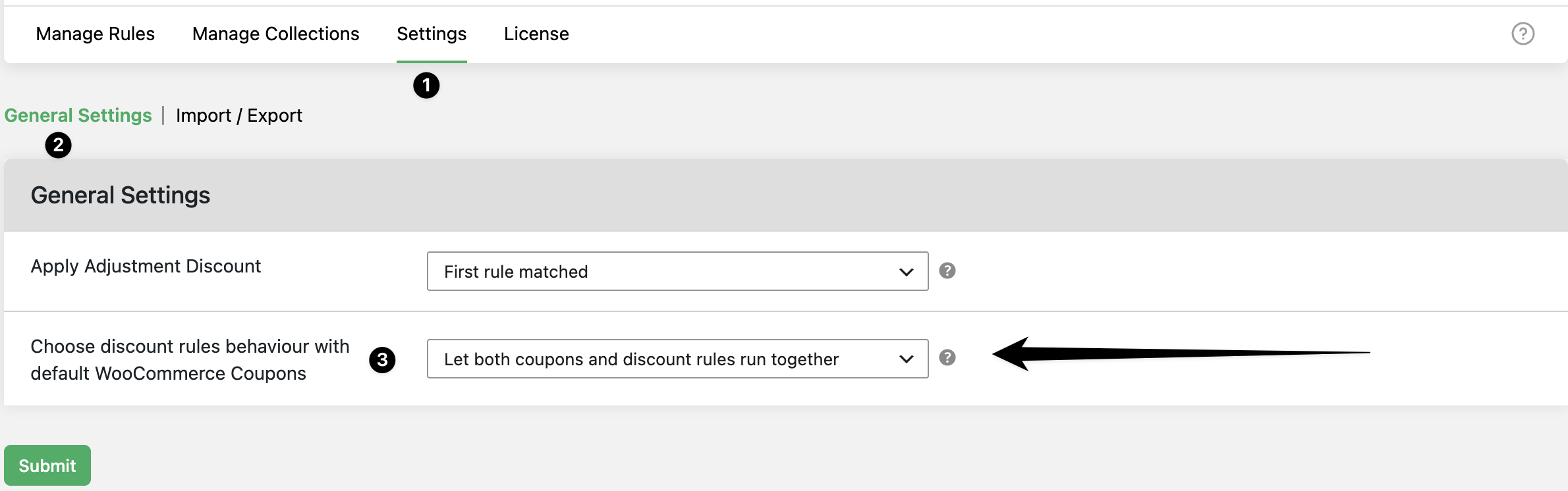
Go to Dynamic Pricing and Discount Rules → Settings → General Settings.
Step 2: Choose the coupon behaviour
Find Choose discount rules behaviour with default WooCommerce Coupons and pick one of three options:
| Option | What it does |
|---|---|
| Let both coupons and discount rules run together | Default. Customers can apply a coupon and, if they're eligible, a discount rule too — both apply at the same time. |
| Disable the coupons (discount rules will work) | The coupon field is disabled on the cart and checkout pages. Any coupon already applied is removed automatically. |
| Disable the discount rules (coupons will work) | Discount rules won't apply once a coupon is added. If a discount rule is already showing and the customer enters a coupon, the discount is removed automatically. |
Step 3: Save your changes
Click Submit. This is a master setting, so it applies across your whole store.
Example Use Cases
Running a storewide sale without coupon stacking: Select "Disable the coupons" so customers can't combine a coupon with your automatic sale.
Reserving coupons for manual outreach: Select "Disable the discount rules" so a support or sales coupon always overrides any automatic rule.
Letting both promotions apply: Keep the default, "Let both coupons and discount rules run together," if you want customers to stack a coupon with an eligible discount rule.
Conclusion
The coupon behaviour setting decides who wins when a coupon and a discount rule both apply — run them together, or let one take priority. Pick the option that matches how you want promotions to combine, then save it from General Settings.
FAQs
1. Where do I find this setting?
Go to Dynamic Pricing and Discount Rules → Settings → General Settings.
2. If I disable coupons, what happens to a coupon a customer already applied?
It's removed automatically, and the coupon field is disabled on the cart and checkout pages.
3. If discount rules are disabled and a discount is already showing, what happens when a coupon is entered?
The discount rule is removed automatically once the coupon is applied.
4. Does this setting apply to a single rule or the whole store?
It's a master setting under General Settings, so it applies to all discount rules and coupons on your store.