
Export Pickup Details (CSV) from Orders
The Export Pickup Details (CSV) feature allows store admins to quickly export pickup-related order data directly from the WooCommerce Orders listing page.
Using bulk actions, you can generate a CSV file containing all important pickup information such as:
- Order Number
- Customer Email
- Pickup Location
- Pickup Date & Time
- Products with Quantity
This is especially useful for warehouse teams, store managers, and logistics handling pickup orders.
In the Article
Why Use This Feature
- Quickly export pickup orders for processing
- Share pickup schedules with store/warehouse staff
- Save time with bulk export
- Extend and customise export data via hooks
How to Export Pickup Details
Go to:
- Navigate to: WooCommerce → Orders
- Use checkboxes to select one or multiple orders
- From the Bulk Actions dropdown, select: Export Pickup Details
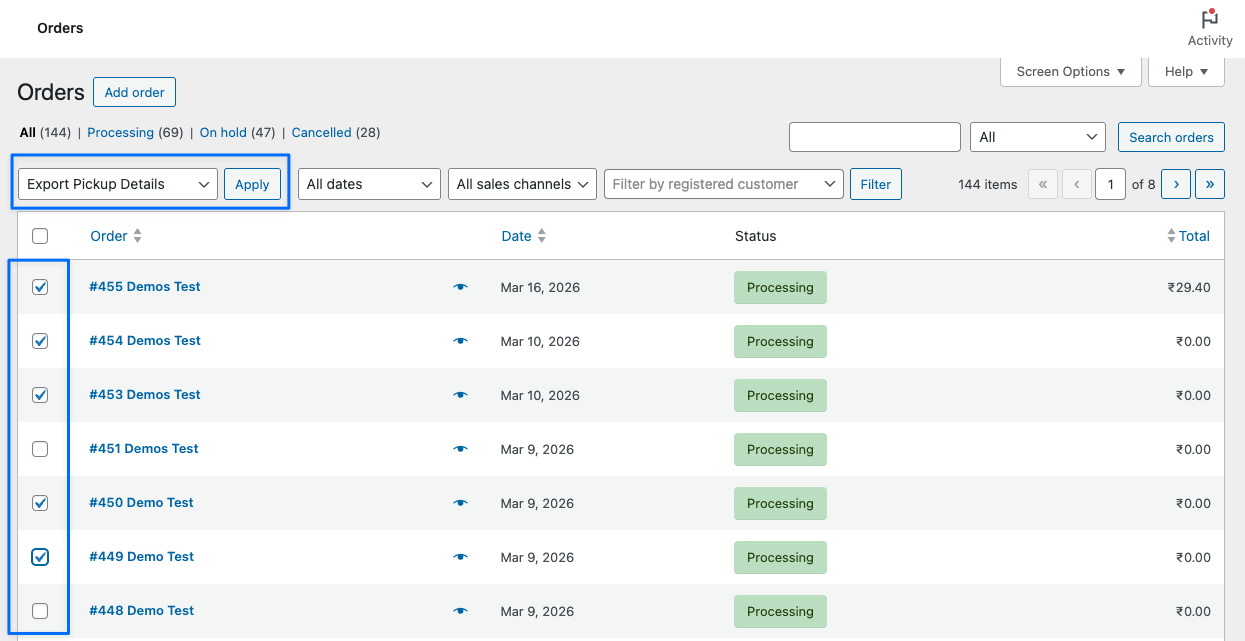
- Click Apply - CSV file will be downloaded automatically
Default CSV Structure
The exported CSV includes the following columns by default:
| Column Name | Description |
|---|---|
| Order Number | WooCommerce Order ID |
| Customer Email | Customer billing email |
| Pickup Location | Selected pickup location |
| Pickup Date & Time | Scheduled pickup slot |
| Products (Quantity) | List of products with quantities |
Developer Customisation (Hooks)
Modify CSV Headers - Use the following filter to change or add columns:
apply_filters( 'dslpfw_pickup_details_headers', $headers );
Example:
add_filter( 'dslpfw_pickup_details_headers', function( $headers ) {
    $headers['order_total'] = 'Order Total';
    return $headers;
});
Modify CSV Data - Use this filter to customise the data for each row:
apply_filters( 'dslpfw_pickup_details_data', $data, $order, $shipping );
Parameters:
$data→ Array of row data (must be returned)$order→ WooCommerce order object$shipping→ Pickup/shipping method object
Example:
add_filter( 'dslpfw_pickup_details_data', function( $data, $order, $shipping ) {

    // Add order total column
    $data['order_total'] = $order->get_total();

    return $data;

}, 10, 3 );
⚠️ Important Notes
- Only selected orders will be exported
- Works with pickup-enabled orders
- CSV format is compatible with Excel, Google Sheets, etc.
- Always return
$datain the filter to avoid empty rows - Keep headers aligned with data keys
- Test export after customisation